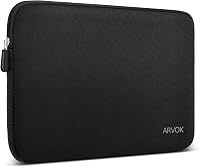
How to Add a Logo to a Laptop Sleeve
Choose a logo method that suits the sleeve material: use embroidery or heat transfer on fabric, a suitable print on neoprene, and engraving or a carefully attached patch on leather.
On this page (6 sections)
- Which logo method fits each laptop sleeve material?
- Where should the logo go on a laptop sleeve?
- What should you check before customizing a sleeve?
- Which bags work if a custom sleeve isn’t the right fit?
- How can you protect the laptop and logo afterward?
- Which method should you choose to add a logo to a laptop sleeve?
To add a logo to a laptop sleeve, match the customization method to its material: embroidery or heat transfer can suit fabric, a compatible print can suit neoprene, and engraving or a securely attached patch can suit leather. Check the care instructions and test the method on a hidden area or spare material first.
The safest option is often a sleeve made for personalization, since its maker can specify the logo process and placement. If you already own a sleeve, check its material, lining, seams, and padding before adding anything.
Which logo method fits each laptop sleeve material?
Fabric, neoprene, and leather need different logo methods. Heat, stitching, ink, and adhesives can affect the sleeve’s surface or padding, so confirm that the method is suitable before proceeding.
For a general overview of shape, padding, and fit, see the computer sleeve for laptops buying guide. A logo should not make the sleeve too tight for the device.
Can you embroider a fabric laptop sleeve?
Embroidery can work on sturdy woven fabric if the needle and thread can pass through without catching the lining or padding. Place the design away from seams, zippers, handles, and areas that flex often.
Check the sleeve’s construction before stitching. A padded sleeve may have layers that shift, and long stitches or a dense design can leave the inside uneven.
If you want a ready-made option, compare best laptop sleeve personalized picks that are designed to carry a custom name or logo.
Can you heat-transfer a logo onto a laptop sleeve?
Heat transfer can suit some fabric sleeves, but only when the fabric and coating can handle the required temperature. Follow the transfer maker’s instructions, and do not press heat directly onto foam padding or a synthetic surface that may melt.
Use a heat press only when the sleeve maker allows it. A household iron can apply uneven pressure and heat, especially near seams and padded sections.
Can you print a logo on neoprene?
Printing can suit neoprene, but the ink or transfer needs to work with its flexible, rubber-like surface. Ask the sleeve maker or print shop which process they use and whether it remains intact when the sleeve bends.
Avoid methods that leave a stiff film across a large area. A rigid patch can crack or peel when the sleeve flexes, and a thick design may catch as you slide the laptop in.
See best personalised neoprene laptop sleeve options if you want a sleeve selected for custom branding.
Can you engrave or add a patch to leather?
Engraving can work on some leather, but it may darken, mark, or weaken the surface depending on the leather and process. Ask a leatherworker to confirm the method and placement before changing a finished sleeve.
A leather patch can be stitched or bonded on, depending on the sleeve and adhesive. Keep it flat and away from the opening so it doesn’t snag or add bulk where the laptop slides in.
For examples of leather styles and personalization, browse best personalized leather laptop sleeve. If you’re making a sleeve yourself, a leather laptop sleeve pattern can help you plan the logo before assembly.
Where should the logo go on a laptop sleeve?
Put the logo on a flat area that won’t interfere with the opening, seams, or device fit. Check the sleeve with the laptop inside, since padding and shape can change how a design sits.
A centered logo on the outer panel is easy to see. A smaller mark near a lower corner can be more discreet and may avoid a large printed area.
Before applying the logo, mark its outline with removable tape or a fabric-safe marking tool. Close the sleeve and check that the placement looks balanced from the front and does not fall across a fold.
If the sleeve will ride inside another bag, a subtle logo may be easier to keep clean. To check how much extra bulk a sleeve adds, read how much room a laptop sleeve adds inside a briefcase.
What should you check before customizing a sleeve?
Confirm the material, care instructions, and logo process before you start. A method that works on one fabric may damage a coating, lining, or water-resistant finish on another.
Check these points with the sleeve maker or customization shop:
- The outer material and any coating
- Whether heat, stitching, ink, or adhesive is allowed
- The logo’s final size and color
- Whether the design touches seams or the closure
- How to clean the sleeve after customization
Measure the sleeve and laptop together before ordering a custom design. A logo can make a sleeve harder to slide into a tight bag if it adds a raised patch or stiff layer.
For size comparisons, see best laptop case 13 inch and best laptop sleeve 14 inch. Check your laptop’s dimensions as well as its screen size, since screen size alone does not tell you the full device width and depth.
Which bags work if a custom sleeve isn’t the right fit?
Choose a bag with a built-in padded compartment if you want to avoid customizing a separate sleeve. A briefcase or backpack can keep a logo on the bag itself, while leaving the laptop compartment unchanged.
The Targus Classic Slim has a foam-padded compartment for most laptops up to 16 inches, plus pockets for files and smaller items. Its exterior is polyester, so check with a customization shop before choosing a logo method.
The Amazon Basics case has front storage for small essentials and a back panel pass-through for rolling luggage. Its compact fit makes checking your laptop’s measurements especially useful before choosing it.
The SWISSGEAR 1900 ScanSmart backpack has multiple organizer pockets and a lay-flat design for airport screening. If you want a logo on the bag, ask a customization shop whether its polyester material suits the process you have in mind.
How can you protect the laptop and logo afterward?
Keep the logo away from the laptop’s contact points and follow the care instructions for both the sleeve and the logo material. Let ink, adhesive, or a transfer cure fully before putting the laptop back inside.
Inspect the sleeve’s interior for loose thread, hard edges, or adhesive residue. Remove anything that could rub against the laptop or catch on a port, corner, or zipper.
Clean the sleeve according to its maker’s instructions. Scrubbing, heat, or harsh cleaners may fade a printed mark or loosen an applied patch.
Which method should you choose to add a logo to a laptop sleeve?
For a laptop sleeve add logo project, choose embroidery or a compatible transfer for suitable fabric, a flexible print for neoprene, and professional engraving or a flat patch for leather. If you’re unsure about the material or finish, ask the sleeve maker or a customization shop before applying heat, ink, stitches, or adhesive.
Choose a personalized sleeve when the logo is central to your purchase. Choose a built-in laptop compartment when you want to carry the device without changing a sleeve’s surface.